Every dress has its own barcode
Each piece gets its own tag, so scanning finds that exact dress. Print labels, tag old stock, and keep your BridalLive tags working.
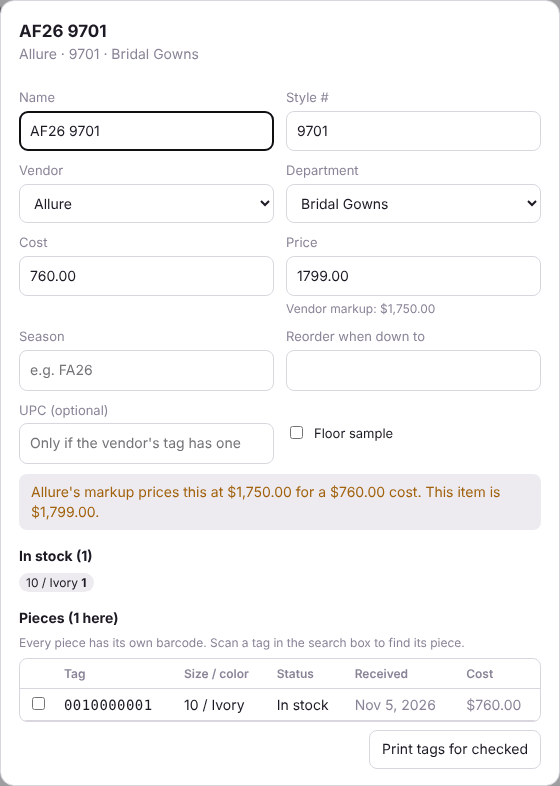
In BridalIQ POS every piece has its own barcode, even two of the same style in the same size. Scanning a tag finds that exact piece: its size, color, when it came in and whether it is in stock, held for a bride or sold.
Print tags
- Pick what to print:
- after receiving a purchase order: Print tags on the purchase order;
- for one item: open it on Inventory and press Print all tags, or tick pieces and press Print tags for checked;
- for several items: tick them on the Inventory list and press Print tags.
- Choose the labels: a 2.25 × 1.25 in roll for a thermal label printer, or an Avery 5160 sheet (30 per page). For a sheet you can skip labels already used.
- Leave Show the price ticked to print the price on the tag.
- Press Open tags and print from the page that opens.
Tag stock that has none
Managers: on Inventory, Make tags for stock that has none gives every piece on hand its own barcode and opens the tags to print. You only need to do it once. Inside an item, Make tags does the same for that item.
Where you can scan
- Register: scan into Add an item to put that exact piece on the ticket. It is held for her.
- Inventory: scan into the search box and press Enter to open the item with that piece picked out.
- Counts: scan each piece while counting. See Inventory, stock adjustments and counts.
- Taking stock out and transfers between your stores.
Your old BridalLive tags still scan
When you move over from BridalLive, each piece keeps the Item # printed on your BridalLive tags. Scanning an old tag finds that piece, so you don't have to re-tag the store on day one. If two pieces shared one BridalLive number, scanning it picks one that is still in stock. Any new tag you print uses the piece's new BridalIQ barcode.