Customers, weddings and wedding parties
Keep every bride, her wedding date and her whole party together, with measurements, notes, purchases and messages on one page.
Find or add a customer
- Open Customers and search by name, phone or email.
- To add someone, press Add customer. Fill in her name, phone, email, customer type and consultant.
- Add her event (wedding, prom, quinceañera, homecoming, pageant or other), her role, the date and the venue.
- Add a second contact (mom, maid of honor, fiancé) to reach if she doesn't answer.
- Tick OK to text her only if she agreed to texts, and press Add customer.
Her page
Everything about her is on one page: phone and email, store credit, her purchases and what she still owes, her event and party, appointments, measurements, alterations, messages and her client portal link. The buttons at the top start a special order, a sale or an alteration, add a note, or book an appointment.
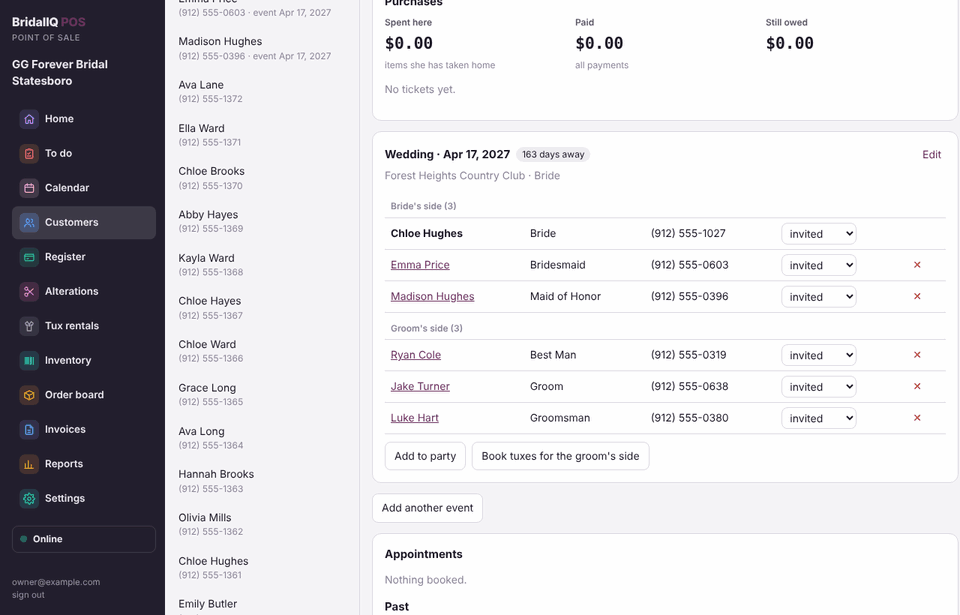
Build the wedding party
- On the bride's page, find her wedding card (or press Add wedding or event).
- Press Add to party, pick the role (Bridesmaid, Groomsman, Mother of the Bride...), then search for an existing customer or type someone new.
- Keep adding people, then press Done. People in groom's-side roles (groom, best man, groomsmen, ushers, the groom's parents) go on the groom's side by themselves.
- Change each person's status as things happen: invited, measured, ordered, paid, received, picked up, returned.
- Use Edit on the wedding card to change the date or venue, or set a need everything by date.
Every person in the party is a customer with her own page; click a name to open it. Taking someone out of the party keeps her customer record. When the groom's side is in, Book tuxes for the groom’s side sets up their tux rentals.
Measurements and notes
- Press Add measurements and switch between Dress and Tux / suit. The newest set shows on her page.
- Press Add note to add to her notes without retyping them. Notes work offline too.
Duplicates
Managers see a Duplicates button on the Customers list. It finds customers with the same email, phone or name. Compare two, then Merge: everything moves to the one you keep, the other is kept in the history, and the merge can be undone from her page.