Purchase orders and receiving
Order brides’ gowns and stock from vendors, track ship dates, receive what arrives and print its tags.
Everything about ordering lives on the Order board: Board (each bride's items), Purchase orders and Vendors & pricing.
Order for brides
- On Board, tick items in Not ordered from one vendor and press Create purchase order.
- Add a ship-by date and notes for the vendor if you like, and press Create PO.
Order stock
- On Purchase orders, press New stock order for floor samples, accessories or market orders that aren't for a bride.
- Pick the vendor, add a line for each item (description, style, size, color, quantity, cost) and press Create PO.
Send it and track it
- Open the purchase order and press Print / PDF. Send it to the vendor the way you usually do.
- Press Mark sent to vendor. Brides' items move to Ordered.
- When the vendor confirms, open Vendor confirmation, enter the confirmed ship date and their order number, and press Save confirmation.
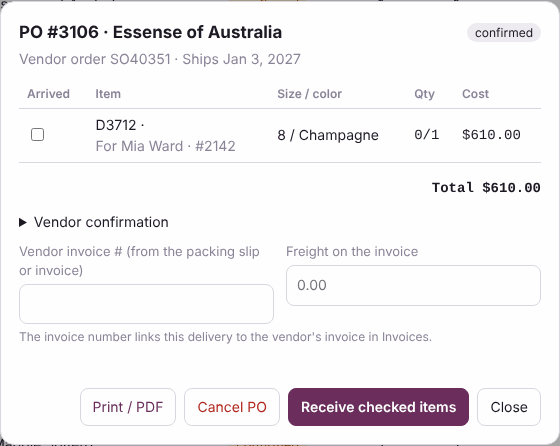
Receive what arrived
- Open the purchase order and tick each line that arrived. If only some of a line came, change the number.
- Type the vendor's invoice number from the packing slip, and the freight if there is any.
- Press Receive checked items. Brides' items move to Received; stock goes on your shelf.
- Press Print tags to print a tag for every piece that came in.
A purchase order that arrives in more than one box stays open until everything is in. Cancel PO sends brides' items back to Not ordered.
Vendors and pricing
On Vendors & pricing, owners and managers set each vendor's markup (times cost, or a percent over cost) and shipping. New items are priced at cost times markup plus shipping, rounded up to the next $10. Keep the vendor's phone, order email, your account number, rep and usual days to ship there too.
Vendor invoices
Drop vendor invoices, statements and credit memos on the Invoices screen. Each invoice is checked against what you received on its purchase order, matched by the invoice number you typed when receiving. See Vendor invoices and bills without QuickBooks.
Who sees costs on a purchase order
Managers and owners see each line's cost and the PO total. Staff don't, unless the owner turns on Staff can see costs on purchase orders in Settings, Staff and money. Then staff who work with purchase orders see costs and totals on the PO list, the PO, its print, the email and PO drafts. It opens nothing else: costs in Inventory, items and reports stay with managers and owners, and so do vendor markups.
See the email on a PO shows what will go to the vendor (with costs only if you may see them). The vendor's copy always has the costs.
Closed purchase orders from BridalLive
When you move over, your closed BridalLive purchase orders can come too, for reference (see Moving over from BridalLive). Pick From BridalLive (closed) in the list, or type a PO number or vendor in the search box. They keep BridalLive's PO numbers. They are read-only: they aren't on order, can't be received, and never change your stock or bills.
Rush orders
An order is Rush when the earliest day it is needed is close: her wedding or event date, or the PO's ship-by date if that is earlier, within 8 weeks. Change the number of weeks in Settings, Orders and cancellations.
- Rush POs come first on the Purchase orders list, with a red Rush mark.
- On the order board, rush items are highlighted and say Rush — wear date 12/20.
- Home lists rush orders to watch, including rush items not ordered yet.
- The PO email starts with RUSH — wear date 12/20, in the subject too, and so does the printed PO.
Flag one by hand with Flag rush in the PO window, or Rush on an order-board card. Take off rush flag removes your flag. The automatic flag always follows the dates.