Signing out everywhere
Lost a phone or signed in on a shared computer? Sign yourself, or someone on your team, out of every device at once.
How long you stay signed in
Once you sign in with your code, that device stays signed in for 30 days of use: every day you use it, the 30 days start again. After 90 days it asks for a new code whatever happens. sign out at the bottom of the left bar signs out only the device you're on.
Sign yourself out everywhere
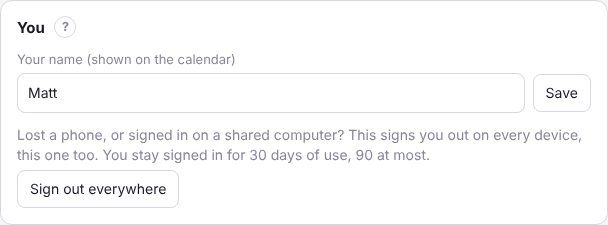
- Open Settings and find the You card (at the top).
- Press Sign out everywhere and say yes.
- Every phone, tablet and computer signed in as you is signed out, this one too. Sign in again with a new code on the devices you still use.
Changes saved offlineIf this device has changes saved while the internet was down that haven't been sent yet, it asks first. Signing out loses them, so wait until you're back online if you can. See Working offline.
Sign someone on your team out everywhere
- Owners: open Settings, Team.
- Beside the person, press Sign out everywhere.
- They're signed out on every device, in every store they work in (a sign-in belongs to the person). They can sign in again with a new code. It's kept in the History.
To stop someone signing in at all, press Turn off instead. That ends their access right away; their history stays, and you can turn them back on later. Managers can't sign out or turn off owners or other managers.
A lost phoneSign out everywhere first, then sign in again on the devices you still have. Your email is what lets you sign in, so make sure nobody else can open it.