Your plan
See which plan your store is on, what it includes, how many people can sign in, and what happens to your records if the plan changes.
See your plan
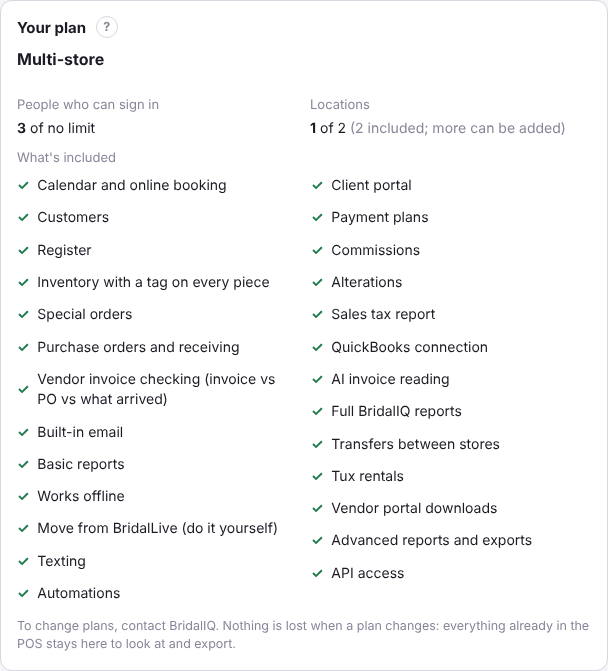
Owners: open Settings, Your plan (just under Store details). It shows:
- The plan's name.
- People who can sign in: how many are on your team now, and how many the plan allows.
- Locations: how many stores you have, and how many the plan includes.
- What's included: a tick beside everything you have. Anything not included is greyed, with the plan that has it in brackets.
The plans
- Boutique: the calendar and online booking, customers, the register, special orders, purchase orders and receiving, inventory with a tag on every piece, vendor invoice checking, built-in email, basic reports, working offline, and moving over from BridalLive yourself.
- Shop: everything in Boutique, plus texting, automations, the client portal, payment plans, commissions, alterations, the sales tax report, the QuickBooks connection (coming soon), AI invoice reading (coming soon), the full reports, and staff scheduling, time off and the payroll export (coming soon).
- Multi-store: everything in Shop, plus two locations (more can be added), transfers between stores, tux rentals, vendor portal downloads (coming soon), advanced reports and API access (coming soon). No limit on people.
Coming soon: a few things the plans include are still being built. They are marked coming soon here and on Your plan, and turn on for your store when they are ready, at no extra cost.
Boutique and Shop are for one store and allow a set number of people; the card always shows the exact list and number for your store.
Something you don't have
A tab or button that isn't on your plan is greyed with a small Upgrade note, and says which plan has it. You can still open screens and look at everything already there: only adding and changing is switched off.
Too many people for the plan
If your team is bigger than the plan allows, the card says over the plan. Everyone already on the team can still sign in, but nobody new can be added until you turn someone off in Team (see Add your team) or change plans.
Change plans
To change plans, contact BridalIQ. There's no payment screen in the POS.
For BridalIQ: setting a store's plan
A BridalIQ admin signed in to the store sees a BridalIQ admin box at the bottom of Your plan (nobody else sees it). Pick the Plan, type how many Extra stores to add on top of the ones included (they count on Multi-store only; the box shows the total), and press Save plan. Each change is kept in the history.
The location limit counts every store in a group, so when the store is part of a group, the plan and extra stores are saved on all the group's stores at once. For example, a group with three stores on Multi-store (2 included) needs 1 extra store before the third can be added.