Special orders from ticket to pickup
Follow a gown from the day she says yes to the day she takes it home: deposit, order, arrival, ready and picked up.
1. Write the special order
- On her customer page press Special order (or on the Register press Special order and pick her).
- Add the gown and anything else she is ordering. Put the size and color on each line, and notes for the order (for example "add 2 inches length").
- Have her Sign agreement, then Take payment. The payment box suggests a deposit (50% unless you changed it in Settings, Register).
2. Order it
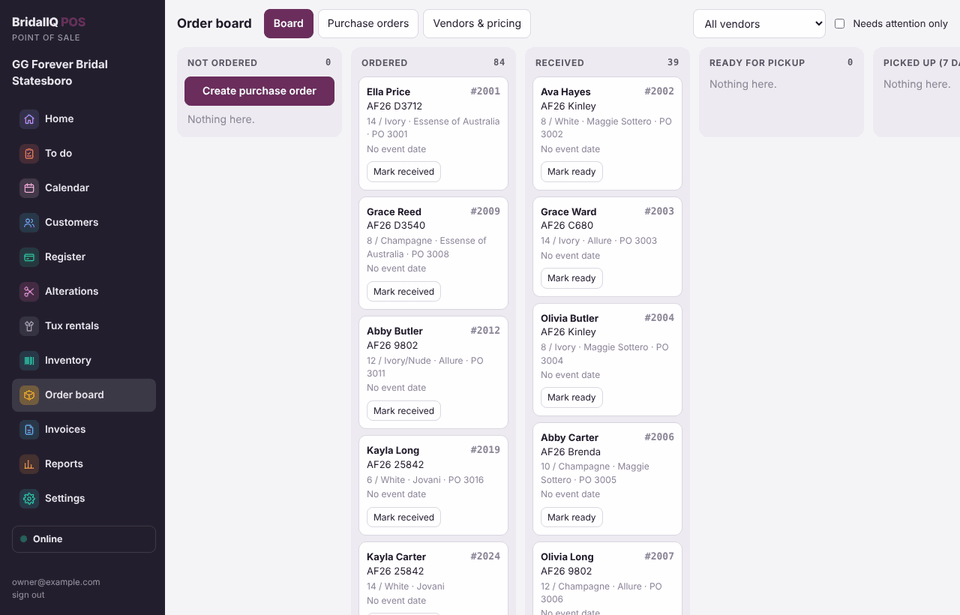
- Open Order board. Her gown is in Not ordered.
- Tick the items going to one vendor (use the vendor filter at the top), and press Create purchase order.
- Print the purchase order or save it as a PDF, send it to the vendor, then press Mark sent to vendor. Her gown moves to Ordered.
- When the vendor confirms, open the purchase order and save the confirmed ship date and their order number.
3. It arrives
- Open the purchase order (Order board, Purchase orders), tick what came in and press Receive checked items. Her gown moves to Received.
- Press Print tags to print a tag for each piece that came in.
- When it is steamed and ready, press Mark ready on the board.
4. She picks it up
- Take the rest of the payment on her ticket. Going home today lists her gown, ticked, once it is received or ready. Press Record payment: it is picked up with the payment and the ticket is done. Untick it if she is leaving it with you.
- Picking it up later (she paid it off before it arrived, or left it for steaming): press Picked up on the board, or set the line's status to Picked up on her ticket. If she still owes money, a manager has to OK it first (below). A piece that leaves before she has paid in full comes off your stock when she picks it up.
Picked up stays picked up. Once an item has left the store, its status shows Picked up with a Make a return button, for everyone. If it comes back, or was marked by mistake, do a return (see Returns). That way a past day's sales, sales tax and commission never change quietly.
A gown not received yet never goes out with a payment, even one that pays it off: it waits until it is here.
Picking up before it's paid off: manager OK
A piece can't go out while her ticket still owes money unless a manager says OK. Her ticket shows Owes $X — manager OK needed to pick up next to each piece still waiting. This is the same everywhere something is picked up: her ticket, the order board, alterations and tux rentals.
- A manager or owner is signed in: press Picked up, type a short reason (for example "paying the rest Friday") and press OK, picked up.
- Staff are signed in: the screen says how much the ticket still owes and asks for a Manager OK. Type the reason, then the manager picks their name and types their 4-number PIN on the same screen. Nobody signs out.
Every OK is kept in the history: the reason, what she still owed, who OK'd it and who was signed in. After five wrong PINs, that manager's PIN waits 15 minutes.
The gown counts as sold on the day she picks it up, not the day she ordered or paid. See Reports and commissions.
She cancels, or walks away: cancel or forfeit an item
On her ticket, each item still in the store has Cancel or forfeit. The item stays on the ticket, crossed out, and a Cancelled and forfeited box below shows who did it, when, why, what went back to her and what the store kept. Nothing is deleted.
- Cancel: she changed her mind. Her money for that item goes back the way your policy says (Settings, Orders and cancellations: a refund or store credit), or you can leave it on her ticket for her other items. Giving money back takes a manager or owner.
- Forfeit: she walked away and gives up her deposit, as her signed agreement says. What the store keeps is a Restocking fee. Only managers and owners can forfeit.
How much the store keeps: your rule
The owner sets it in Settings, Orders and cancellations, When a bride forfeits:
- Keep everything she paid toward it (the usual): the whole deposit, whatever the amount.
- Keep a set dollar amount, or keep a percent: the rest goes back to her as a refund or as store credit (you pick which).
- Give it all back, or give it all as store credit.
When you forfeit, the dialog shows the restocking fee your rule gives and the math. A manager can change the amount; the dialog asks why, and the reason is kept in the history and on the report.
Forfeiting the whole ticket: "what she paid" is all the money on the ticket. Forfeiting one item while she keeps others: the item's share of what she paid (its part of the ticket). Money her other items still need stays on her ticket for them; the dialog shows what her other items come to and what they still owe, so nothing is left unpaid without you seeing it.
A restocking fee is income on the forfeit day. It is never a sale, has no sales tax and earns no new commission (the consultant keeps what the deposit earned when it was paid). It posts to QuickBooks to your Restocking fees account (or the account you already picked for forfeits). What she can be refunded later is never more than she paid less the restocking fee.
A cancel tells you how much of her money is on the item: what she paid beyond what the rest of the ticket costs. A piece already in the store (a scanned tag, or a special order that arrived) goes back to store stock.
A special order already sent to the vendor asks you to pick: Cancel it with the vendor (a note goes on the PO and it drops out of what is still coming; call or email them) or Keep it as store stock when it comes in (when it arrives, it is received as stock with its own tag). An item that already left the store is a return instead.
Reports, Cancelled and forfeited, lists them all for any dates, with a download for Excel.