Writing a sale and signing the agreement
Ring up a sale, a layaway or a quote, scan or search items, print or email the receipt, and have her sign your sales agreement on screen.
Ring up a sale
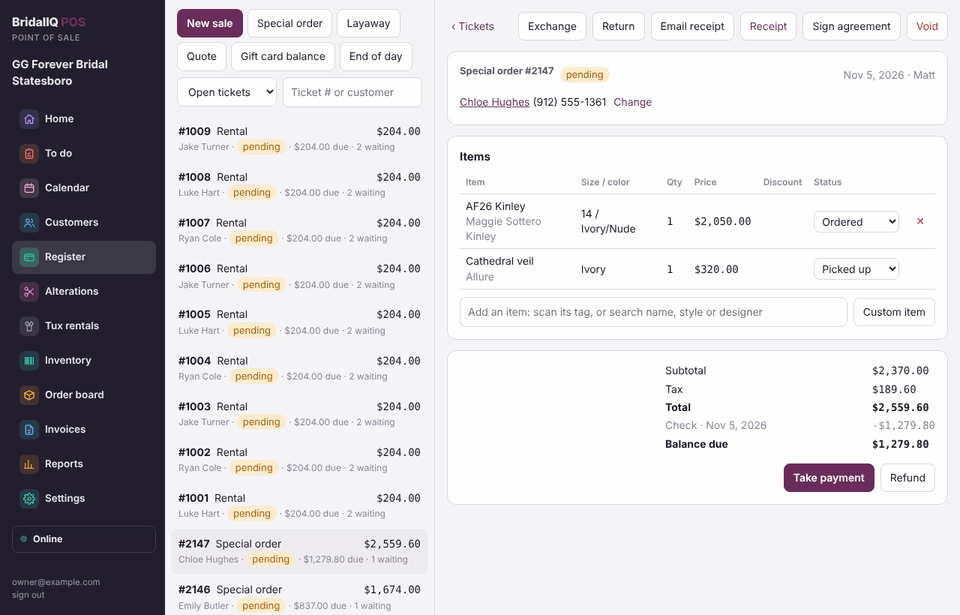
- Open Register and press New sale. (A sale can be a walk-in; you can add the customer later with Add customer.)
- In Add an item, scan the piece's tag, or type a name, style or designer and pick it. A scanned tag puts that exact piece on the ticket with its size and color.
- For an item from the list, fill in size, color, price, quantity, a discount in dollars and whether it is taxed, then press Add to ticket.
- Use Custom item for anything not in your inventory (a rush fee, a bustle). Or pick + Add a new item to inventory to save a new item; its name and price fill in from the vendor's markup.
- Press Take payment. When a sale is paid in full, what she takes today counts as sold. See Deposits, payments and refunds.
Paid in full: she takes it home, nothing else to press
On the payment that pays the ticket off, Take payment lists Going home today with each piece ticked: pieces in the store, received special orders, paid-off layaways, accessories, fees and services. Press Record payment and they are marked picked up at that moment, by you, and the ticket is done. The receipt says Paid in full — taken home. Leaving something with you (steaming, picking up Saturday)? Untick it; it waits on her ticket and the receipt says how many items are waiting. No manager OK is needed, because nothing is owed.
It works the same with the card reader, a pay link, a card on file, gift cards, store credit and offline. A part payment is a deposit: the ticket stays open, and the same list shows on the final payment. Special orders not here yet, alterations, tux rentals and website orders wait for their own pickup. The owner can turn this off in Settings › When things count.
Once an item is picked up, it stays picked up: it shows Picked up and Make a return. To take it back, make a return (see Returns).
How did she come in?
On a ticket's first payment, if she has an appointment today, it closes by itself (see Check-in). If she has none, Take payment asks one question:
- Picking up / buying without trying on: a return customer who just picks something up. No visit time; she counts as a pickup, not in the close rate.
- Shopped with us, but wasn't checked in: pick who helped her and the time she arrived (today, not later than now; it starts at 30 minutes ago). A finished Walk-in visit is added for her, Purchased, so she counts in traffic, close rate and time to sale.
If she has another appointment later today, or shopping appointments in the next 30 days, you are asked whether to cancel or keep each one (fittings and pickups are never asked). See Her other appointments, once she has purchased.
A ticket written on an earlier day (picking up a special order) is a pickup without asking. Staff answer it; no manager needed. It works offline too.
Starting from her appointment
Click her name on the calendar and pick Sale, Special order or Layaway. The ticket opens here filled in from her appointment (customer, consultant, wedding date, a note), and her first payment closes that appointment with its time to sale. See Start a ticket from her appointment.
Other kinds of tickets
- Special order: a gown ordered from the designer. See Special orders from ticket to pickup.
- Layaway: she pays over time and the item stays here. The payment that pays it off sends it home with her (untick it in Going home today if she leaves it).
- Quote: prices without taking money. Press Convert to order to turn it into a special order, sale or layaway.
Special orders, layaways and quotes need a customer. The ticket list shows open tickets; switch to quotes, the last 24 hours or all, or search by ticket number or name.
Receipts
Press Receipt to print it, or Email receipt to send it. Managers can set the POS to email the receipt after every payment when the customer has an email (Settings, Register).
Sign the sales agreement
- Owners and managers write the agreement once: Settings, Register, Agreement customers sign, then Save register settings. Each time the wording changes it gets a new version number.
- On her ticket, press Sign agreement.
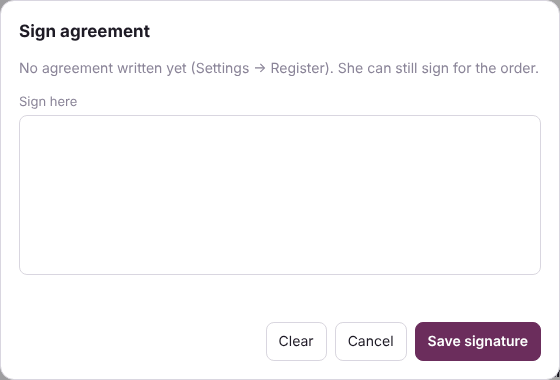
- Turn the screen to her. She reads the agreement and signs in the box with a finger or the mouse. Clear starts over.
- Press Save signature. The button changes to Signed ✓.
A different agreement for each kind of ticket. Under the main agreement, open A different agreement for some kinds of tickets and write one for sales, special orders, layaways, tux rentals or alterations. A kind you leave empty signs the main agreement. Sign agreement shows the right one for her ticket.
The exact words she signed are kept with her ticket. Changing an agreement later never changes a ticket that is already signed; its receipt still shows what she agreed to.
If the client portal is on, signed agreements show on her page under Documents.
Voiding a ticket
Managers can press Void and give a reason. Voided tickets stay in the history; nothing is deleted.